Sometimes, you may wish to point domains to your own or alternative websites, this is great when you own multiple domains for one company, such as alternate names or common incorrect spellings. This guide details how you can configure redirects like this in your cPanel account.
If you have not added any alternative domains to your cPanel service, you can do so by following our guide.
Method:
- Log into your cPanel account.
- Navigate to the Redirects tool, in the Domains category.
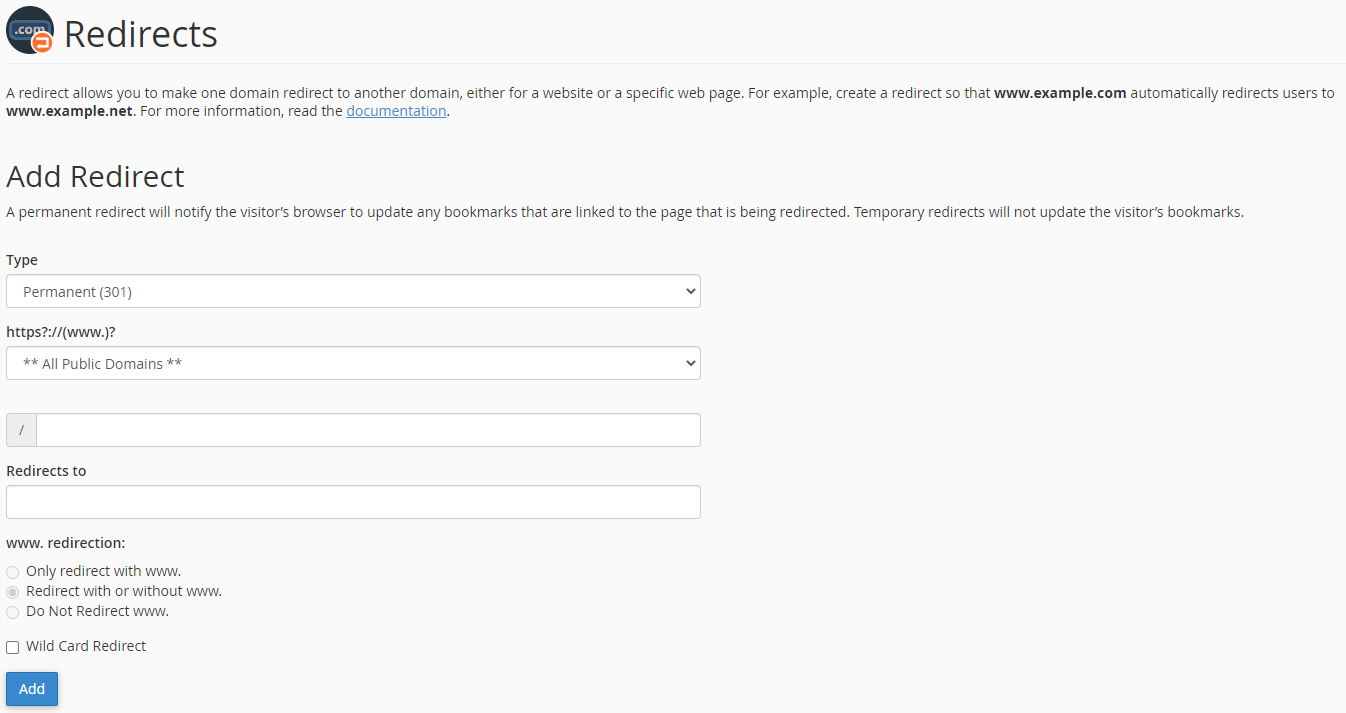
Click here to show the screenshot - Select the type of redirect you wish to use from the "Type" dropdown menu. This will be 301 in most cases. To read more about the different types of redirects, please see this article.
- Select the domain you wish to redirect from the "https?://(www.)?" dropdown menu.
- Leave the "/" field blank and put the page you wish to redirect your domain to in the "Redirects to" field. The domain you are redirecting to must be the full URL, including "https://" or "http://"
Leave the "www. redirection" selection as "Redirect with or without www.". Click "Add" to add your new redirect.
Click here to show the screenshot